Help & Support
Everything you need to get the most out of Cuisina.
What Cuisina Does
Daily Meal Plans
Fresh Breakfast, Lunch, Evening Snacks & Dinner for your chosen cuisine.
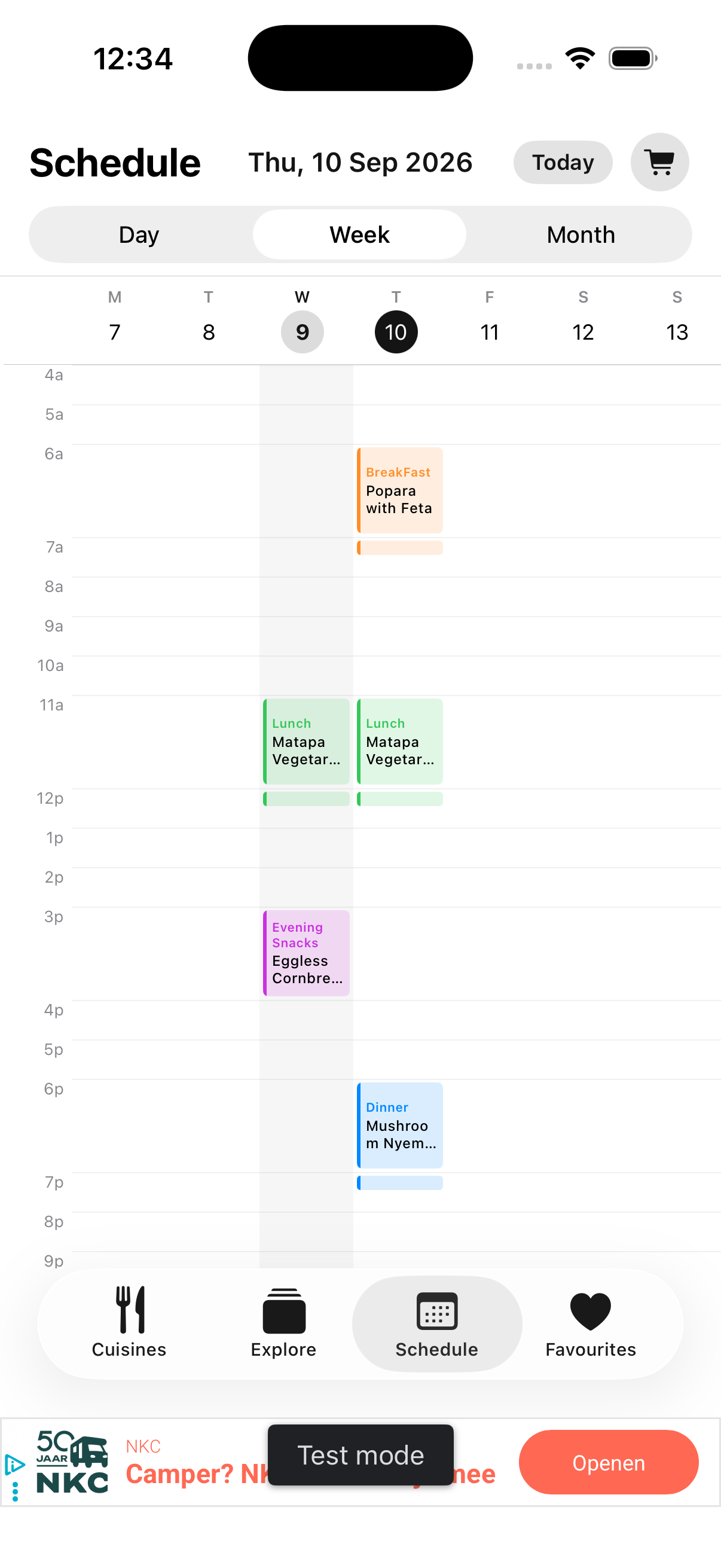
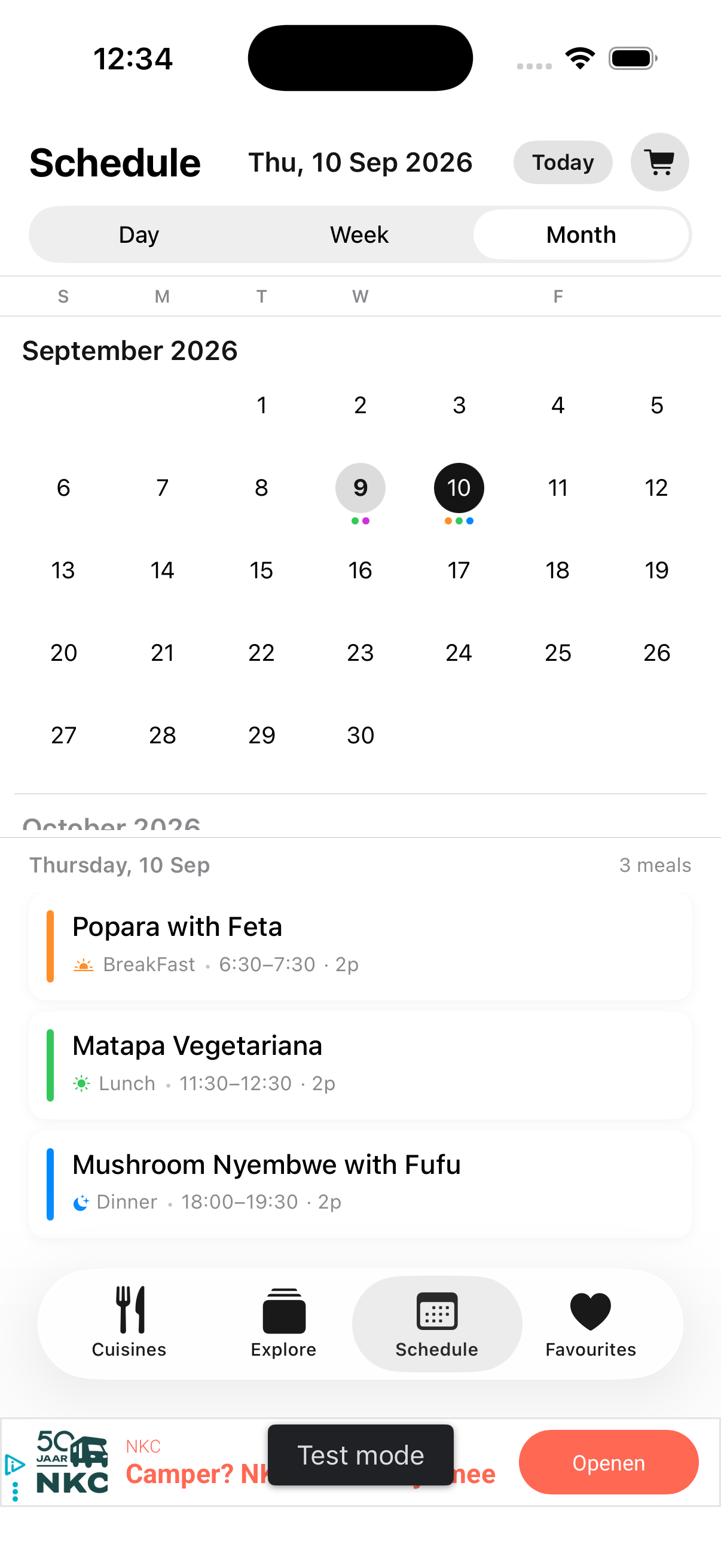
Meal Calendar & Schedule
Day timeline, Week, and Month calendar scheduling with customizable prep windows.
Smart Grocery Lists
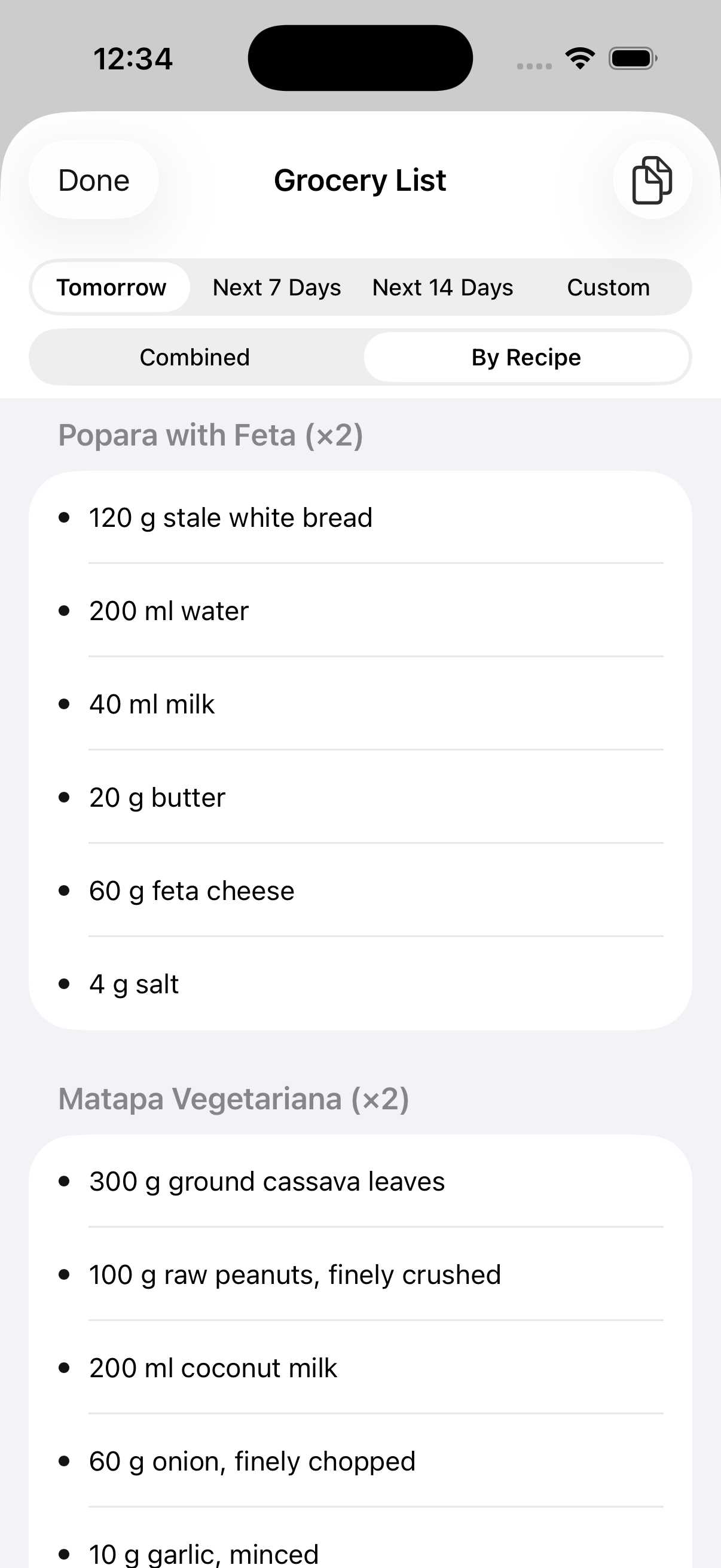
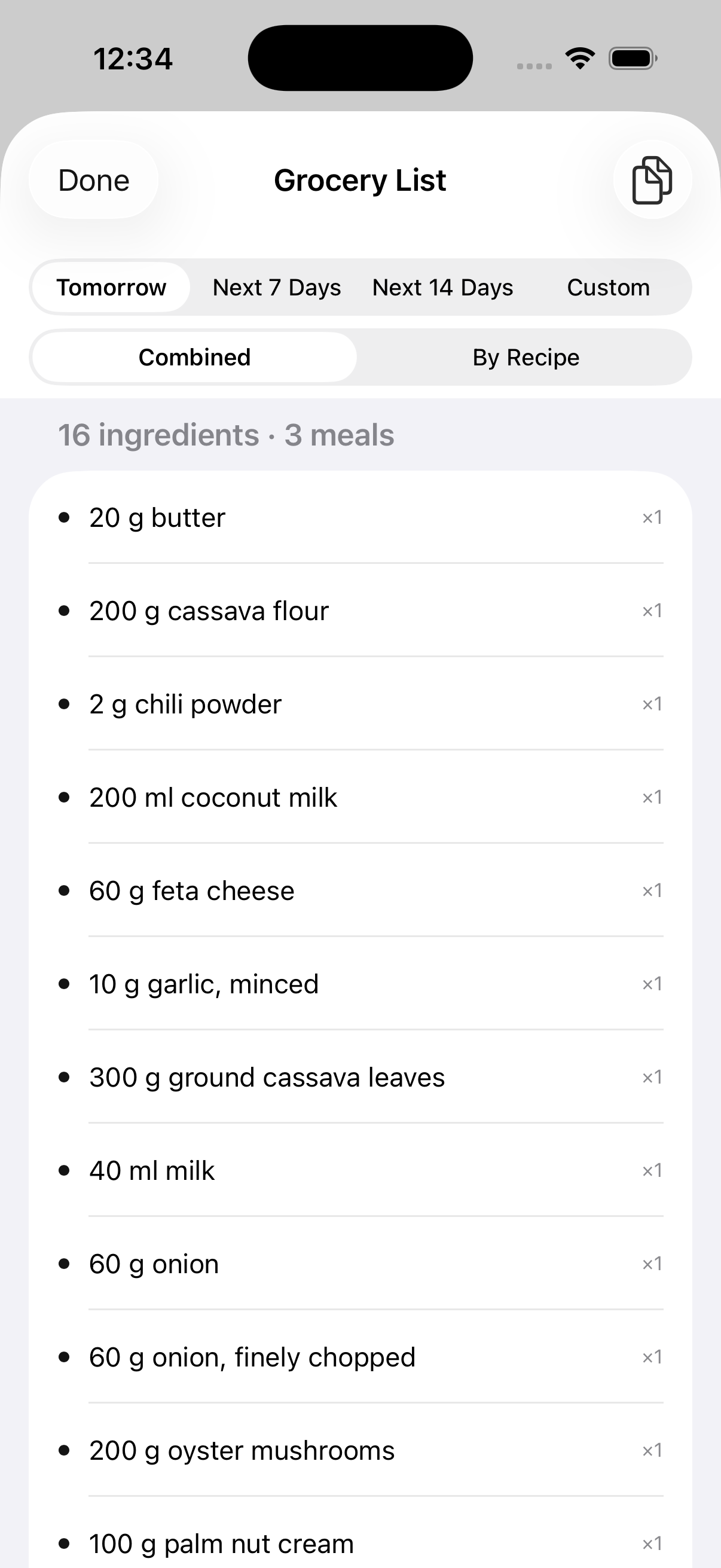
Consolidated ingredients for Tomorrow, 7 Days, or 14 Days (Combined & By Recipe views).
Dynamic Serving Sizes
Scale recipe ingredients dynamically (- / + people) for single diners or dinner parties.
Explore Recipe Hub
Browse individual dishes across all cuisines, filtered by meal slot, cuisine, or language.
476 World Cuisines
Explore 476 regional cuisines organized by continents and sub-regions across 80 supported languages.
11 Dietary Filters
Asian Veg, Vegan, Halal, Jain, Gluten-Free, Kosher, Hindu Veg, Hindu Non-Veg, Low Calorie, and more.
Device Calendar Sync
Sync cooking schedules into Apple Calendar or Google Calendar with meal prep alerts.
Nutrition Facts
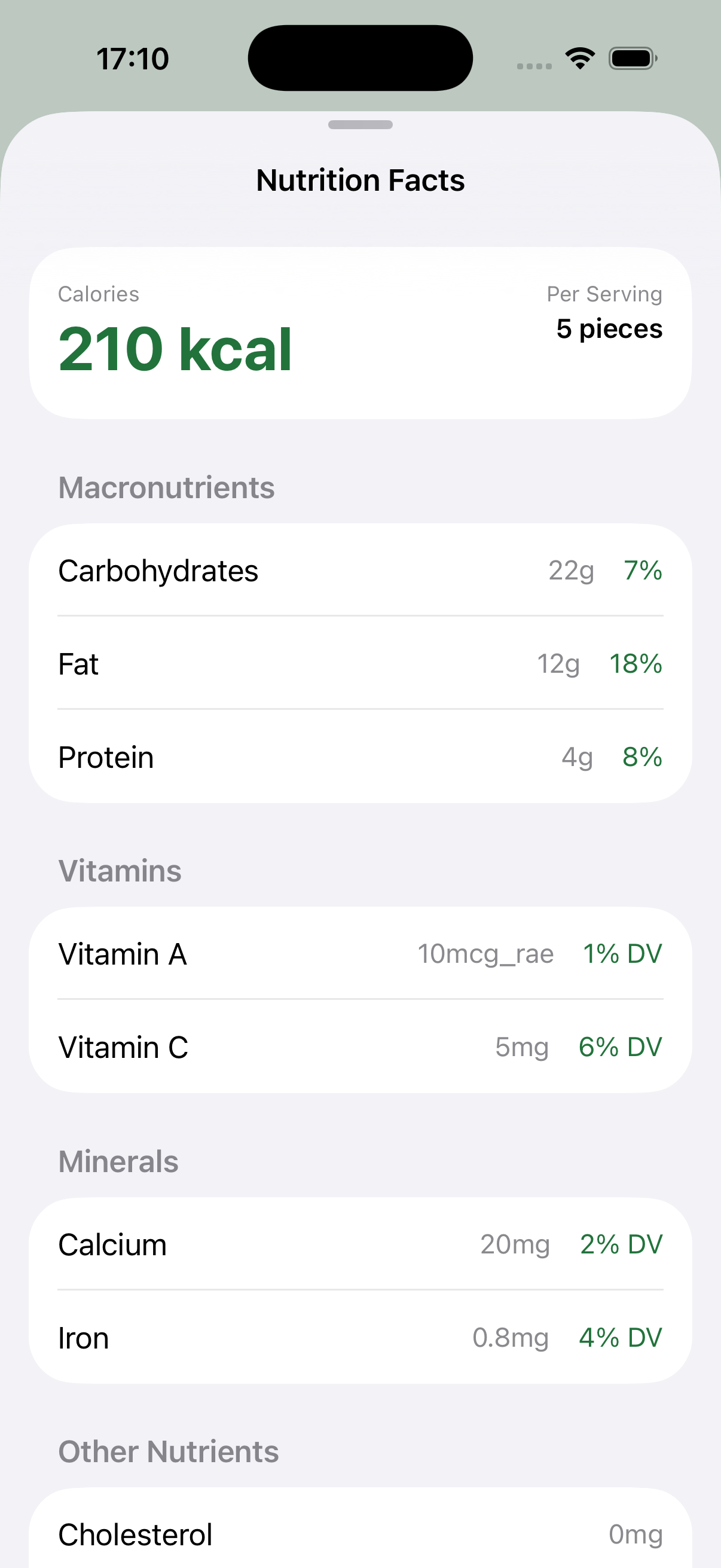
Calorie counts, macro breakdowns (fat, fiber, protein), vitamins, and minerals on every recipe.
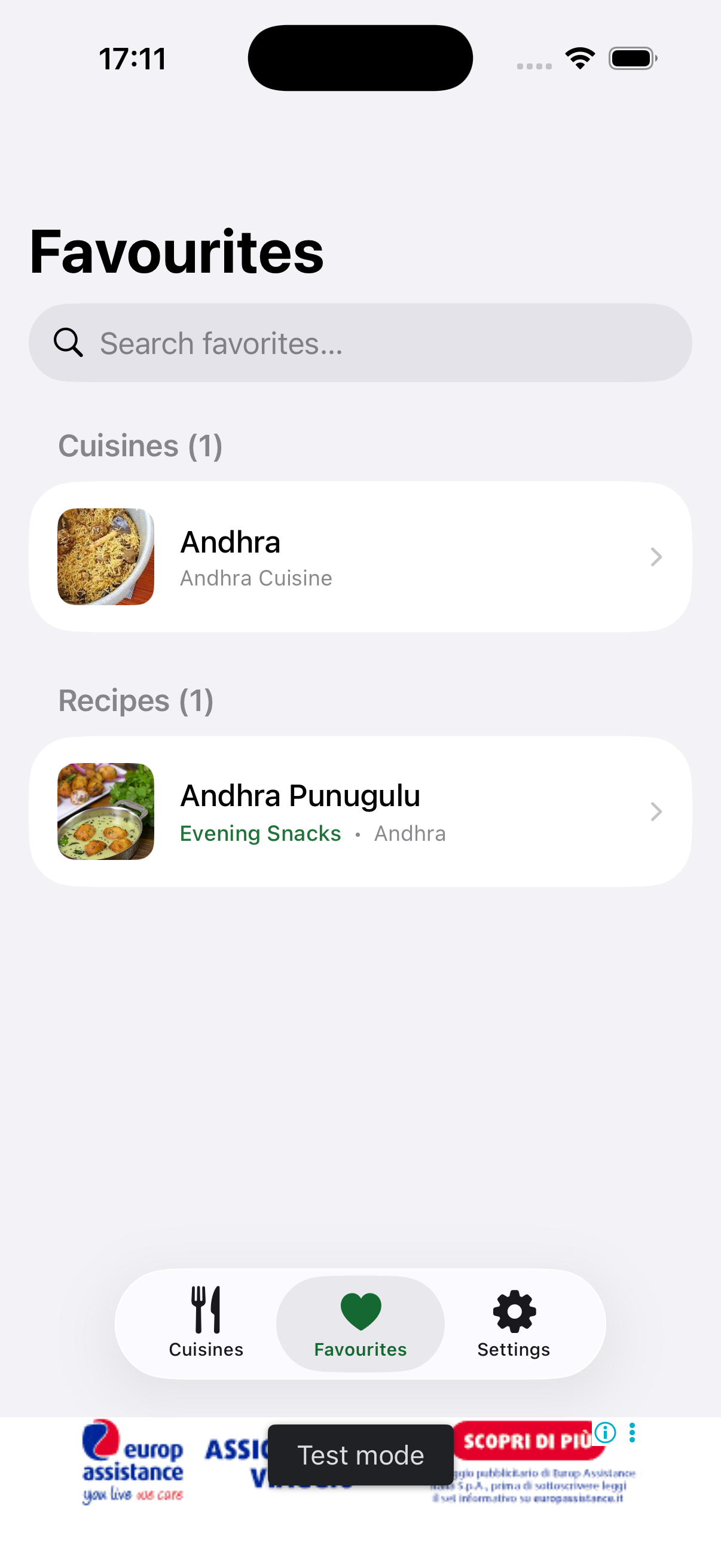
Favourites
Bookmark beloved recipes to easily re-schedule or reference them anytime.
6 Colour Themes
Classic, Forest, Saffron, Golden, Chili, and Ocean with Light, Dark, or Auto modes.
How to Use Cuisina
Open the app & set dietary preferences
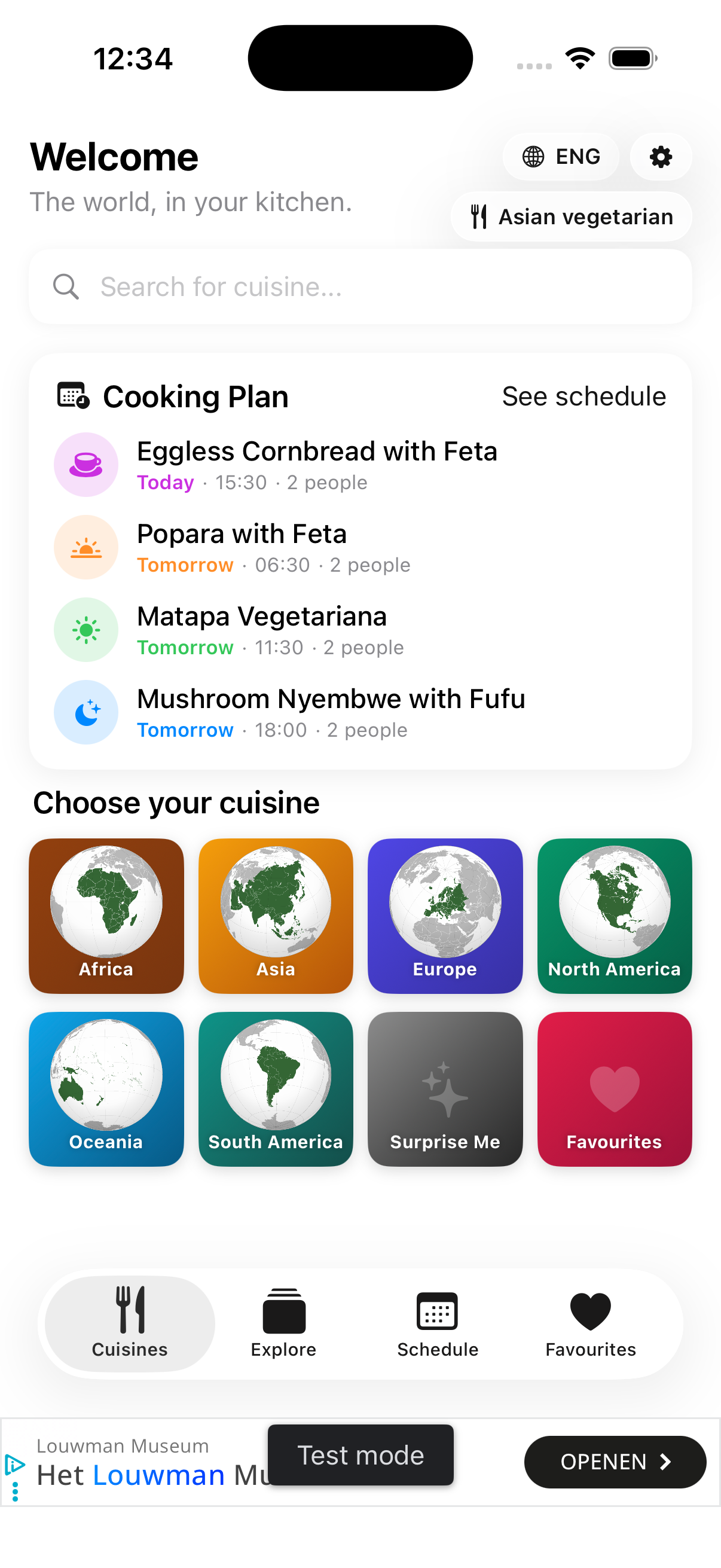
The app loads your cached cuisine data instantly. Set your dietary preference (Vegan, Halal, Jain, Gluten-Free, Kosher, etc.) directly from the chip in the top header or under Settings.
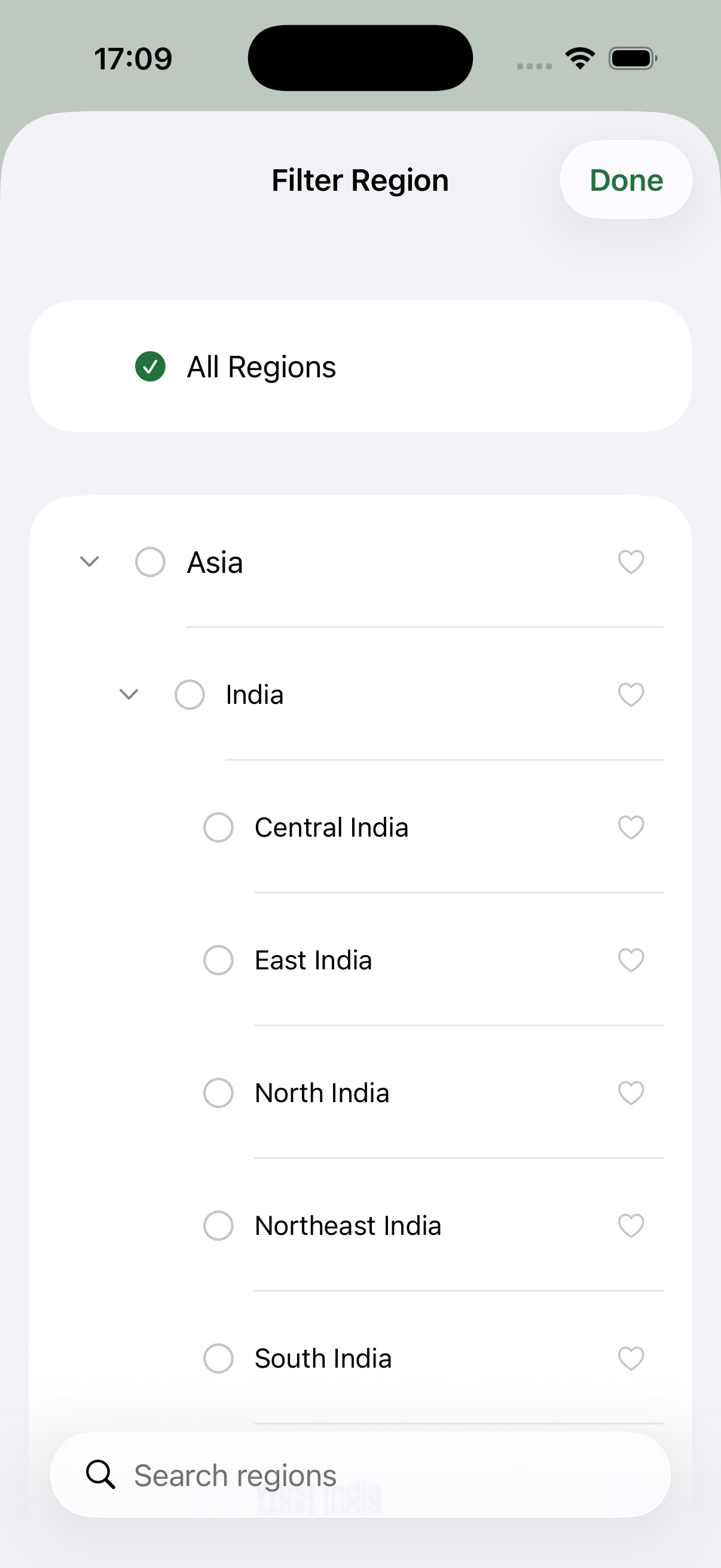
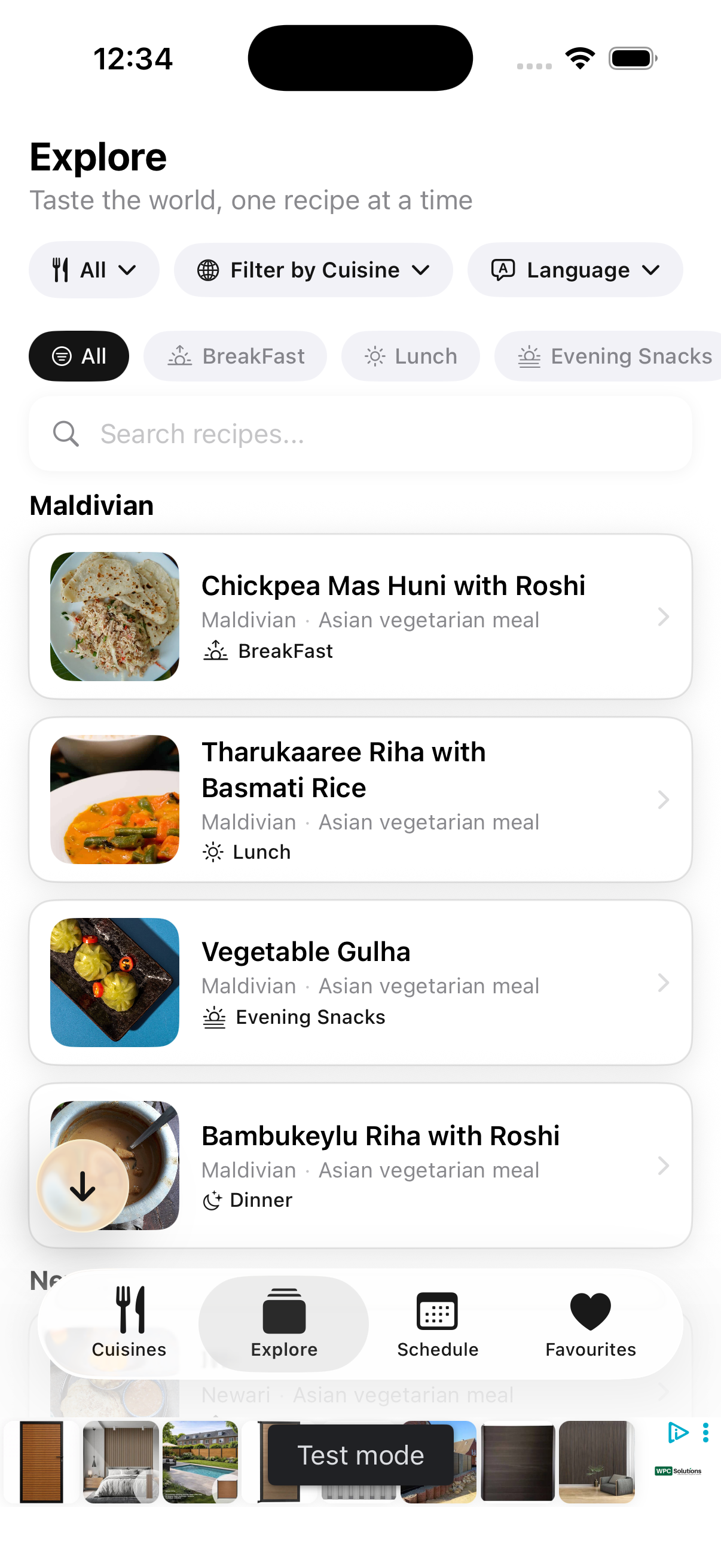
Browse cuisines or Explore recipes
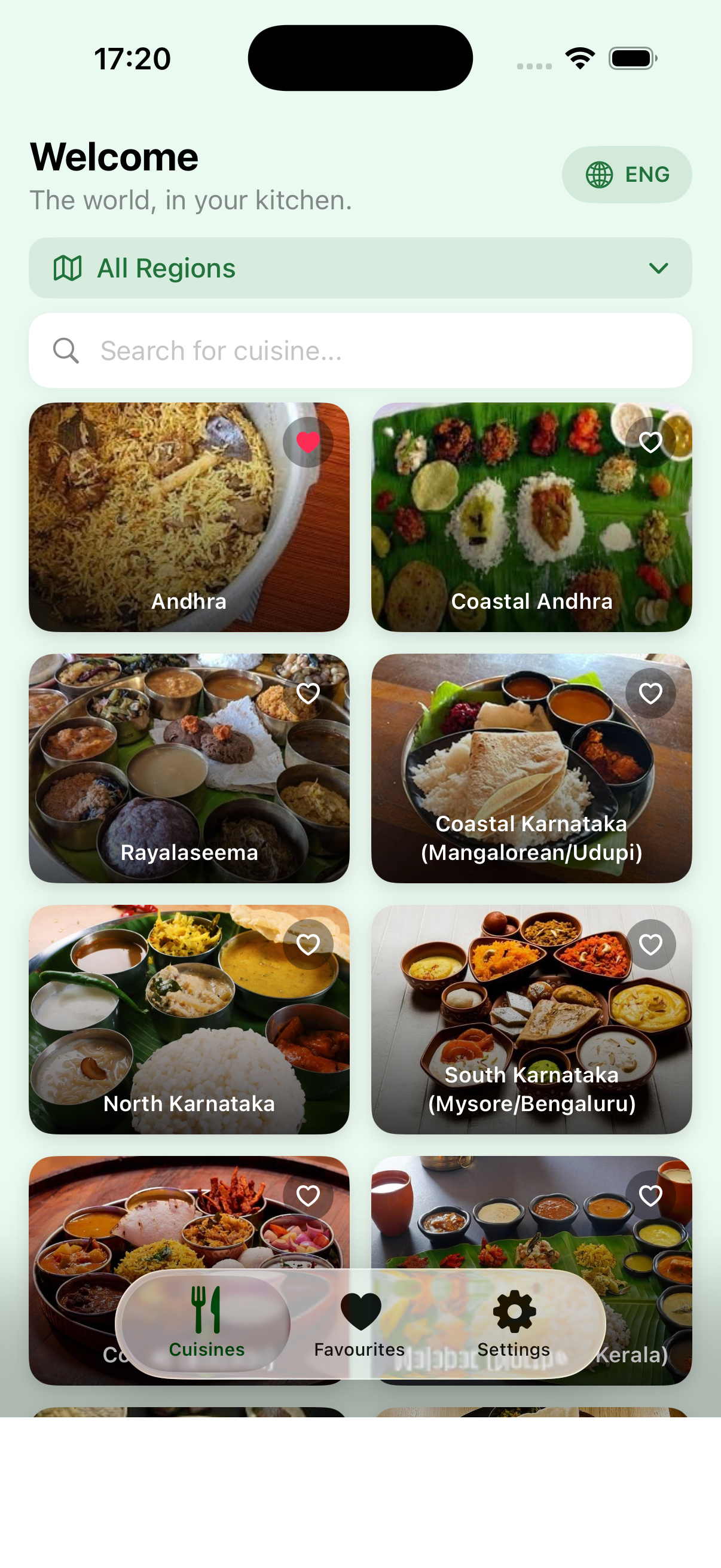
Browse 476 world cuisines categorized across 6 continents and sub-regions (Central Asia, East Asia, Middle East, etc.), tap Surprise Me for spontaneous inspiration, or use the Explore tab to discover individual dishes filtered by meal slot.
Get daily meal plans & view your Cooking Plan
Tap any cuisine to generate a full day's fresh plan — Breakfast, Lunch, Evening Snacks, and Dinner. Your active Cooking Plan on the Home screen gives you immediate visibility of what you have planned for today and tomorrow.
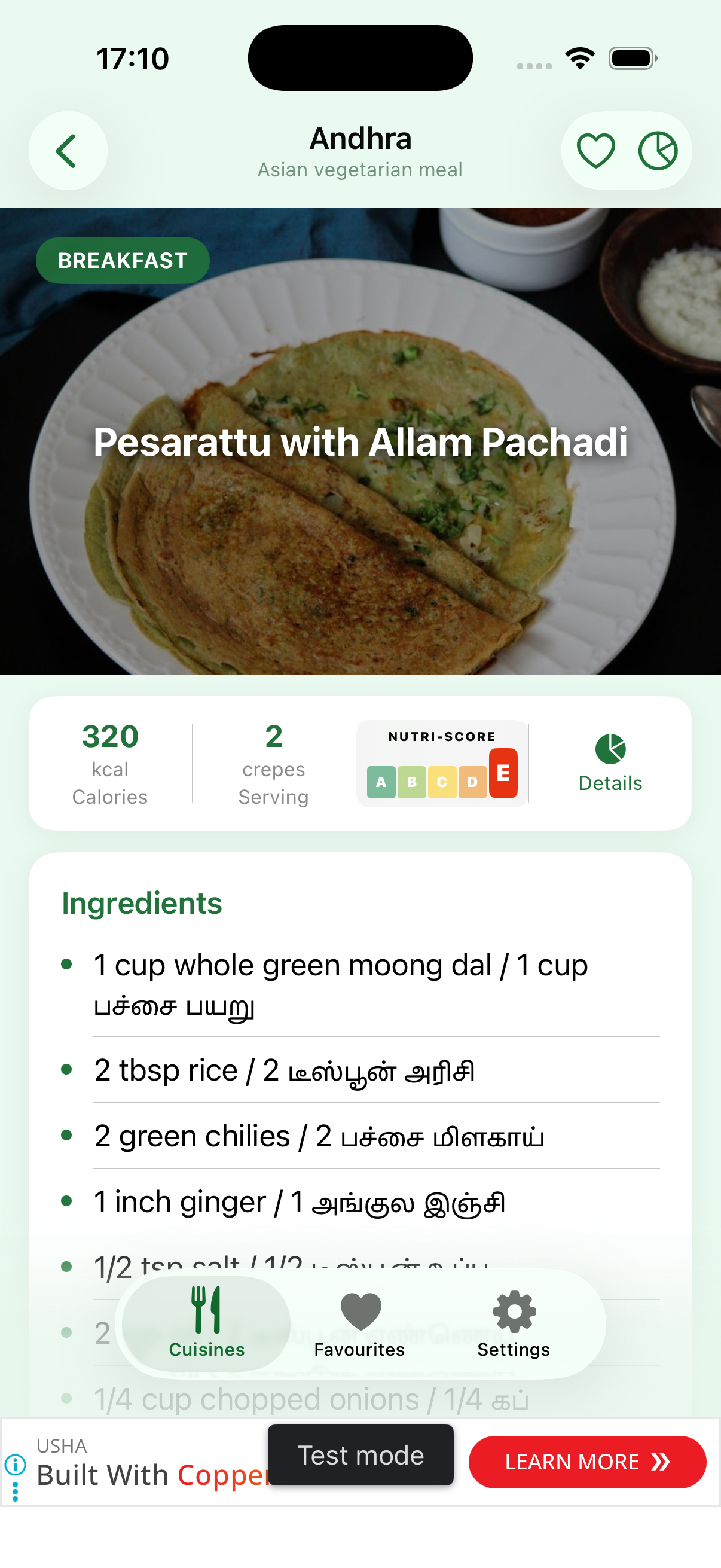
Inspect recipes & scale serving sizes
Tap any meal card to view ingredients, preparation notes, calorie counts, and NutriScore. Use the + and − buttons to scale the serving size — ingredient quantities update automatically.
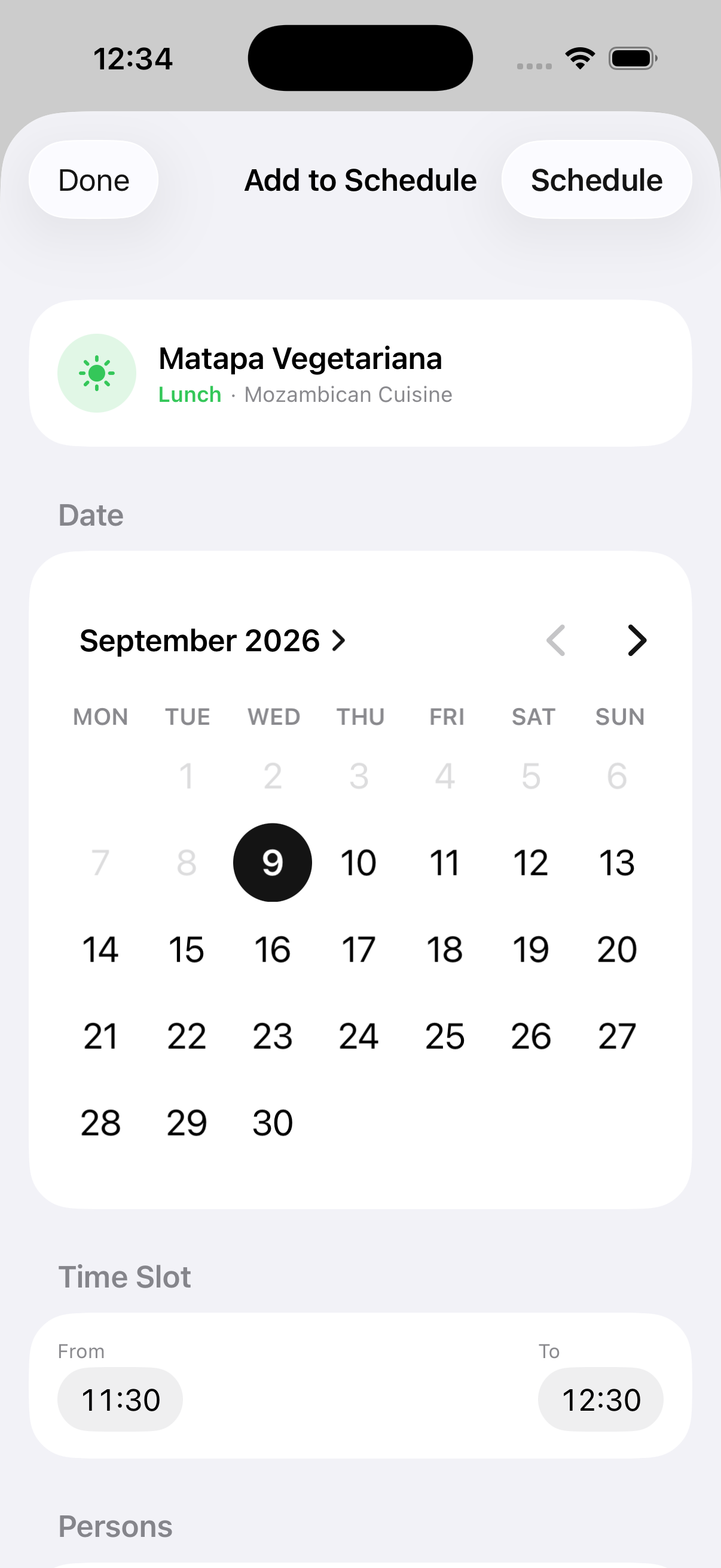
Add meals to your cooking schedule
Tap Add to Schedule on any recipe to pick the date, meal time slot, and number of people. The meal will be added to your daily cooking timeline.
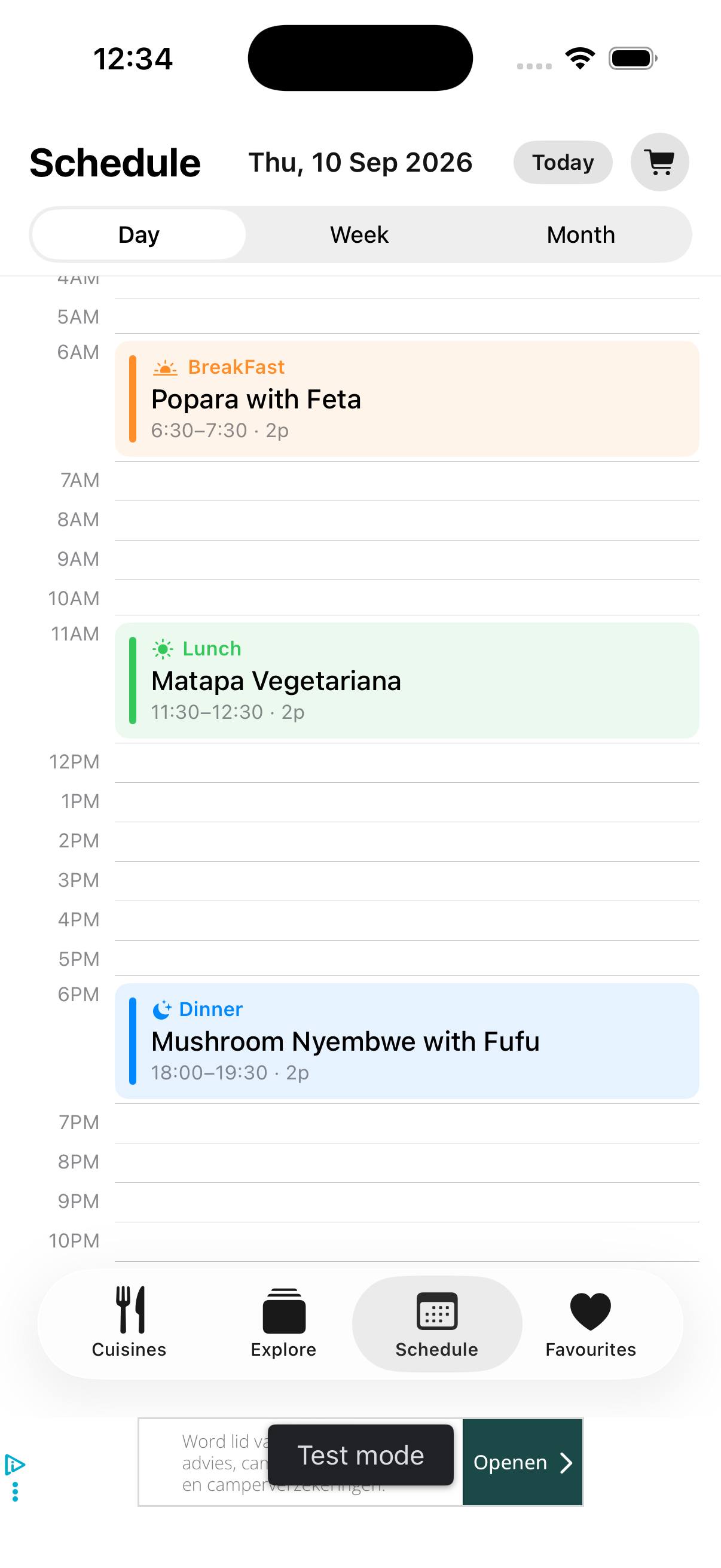
Track your cooking schedule across Day, Week & Month
Navigate to the Schedule tab to view your meals on an hourly timeline (Day view), a weekly calendar strip (Week view), or a full monthly overview (Month view).
Generate smart grocery shopping lists
Open the Grocery List from your schedule to get aggregated ingredients for Tomorrow, the Next 7 Days, or Next 14 Days. Toggle between Combined (total aggregated quantities) and By Recipe views.
Sync with your device calendar & get reminders
Enable device calendar sync to automatically mirror your scheduled meals to a dedicated "Cuisina Meals" calendar on your phone (Apple Calendar on iOS or Google Calendar on Android). Get timely notifications before meal prep begins.
Save favourites
Tap the heart icon on any meal to bookmark it. Access your saved items quickly from the Favourites tab whenever you need inspiration.
Settings Guide
Meal Preference
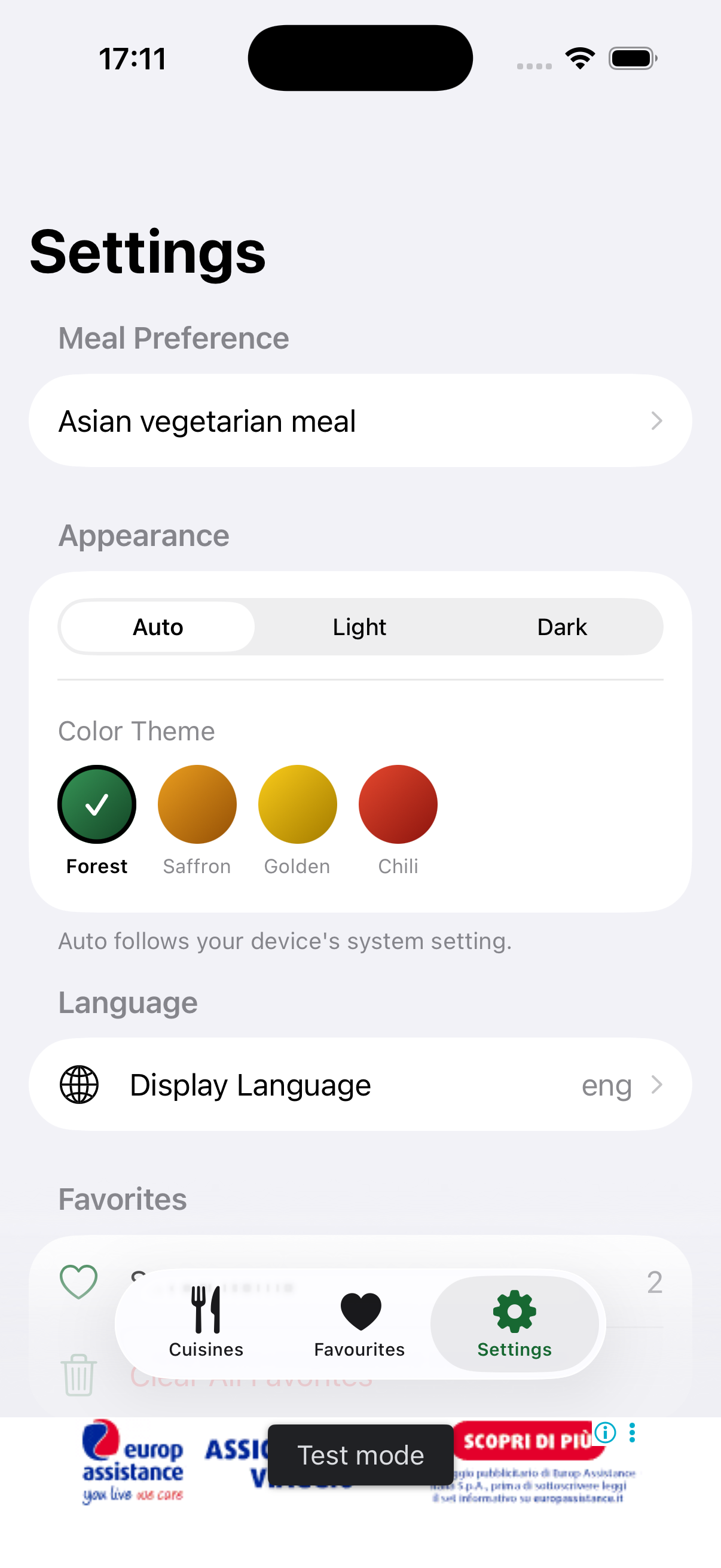
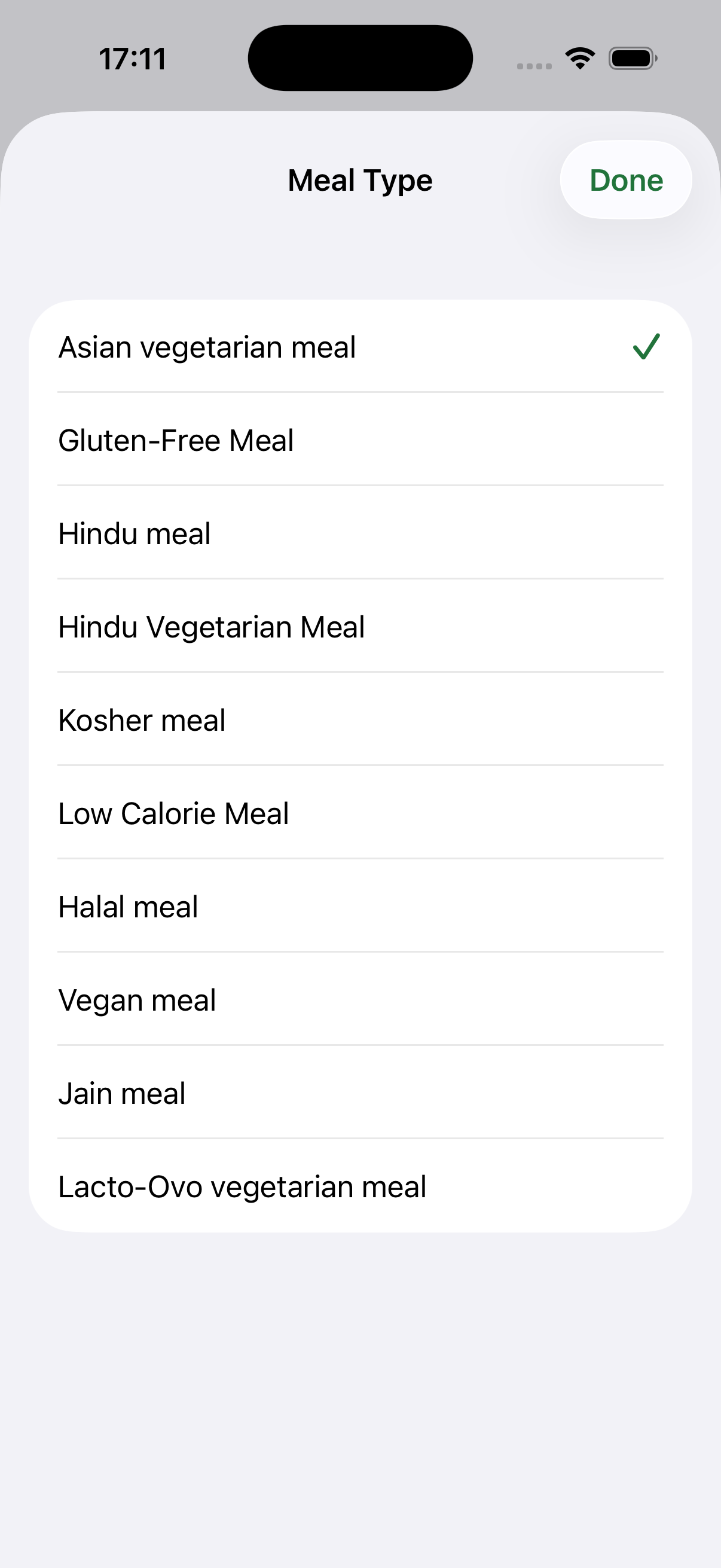
Select your dietary type — Asian Vegetarian, Vegan, Halal, Jain, Gluten-Free, Hindu Veg, Hindu Non-Veg, Kosher, Lacto-Ovo, Low Calorie, or Non-Vegetarian. Your preference is applied globally to all daily plans and recipe exploration.
Default Serving Size
Configure your household size (e.g. 2, 4 people) so all recipes default to the right amounts. You can always fine-tune servings on individual recipes with the + and − buttons.
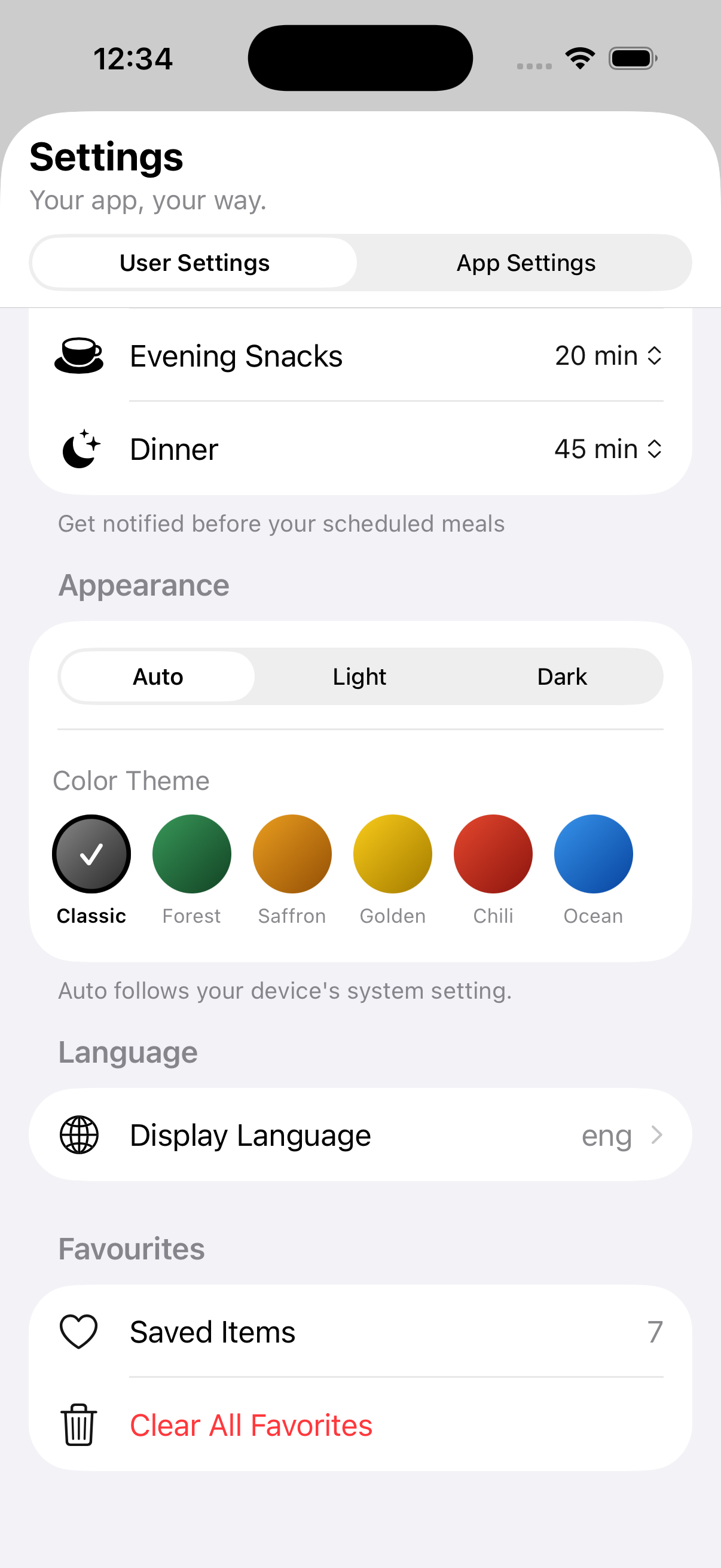
Meal Times & Prep Reminders
Define your preferred prep windows for Breakfast, Lunch, Evening Snacks, and Dinner. Configure how far in advance you want cooking reminder notifications (20 min, 30 min, 45 min, or 1 hour).
Appearance & Colour Themes
Choose Light, Dark, or Auto (follows your device's system setting). Personalise your app with six vibrant colour themes: Classic, Forest, Saffron, Golden, Chili, or Ocean.
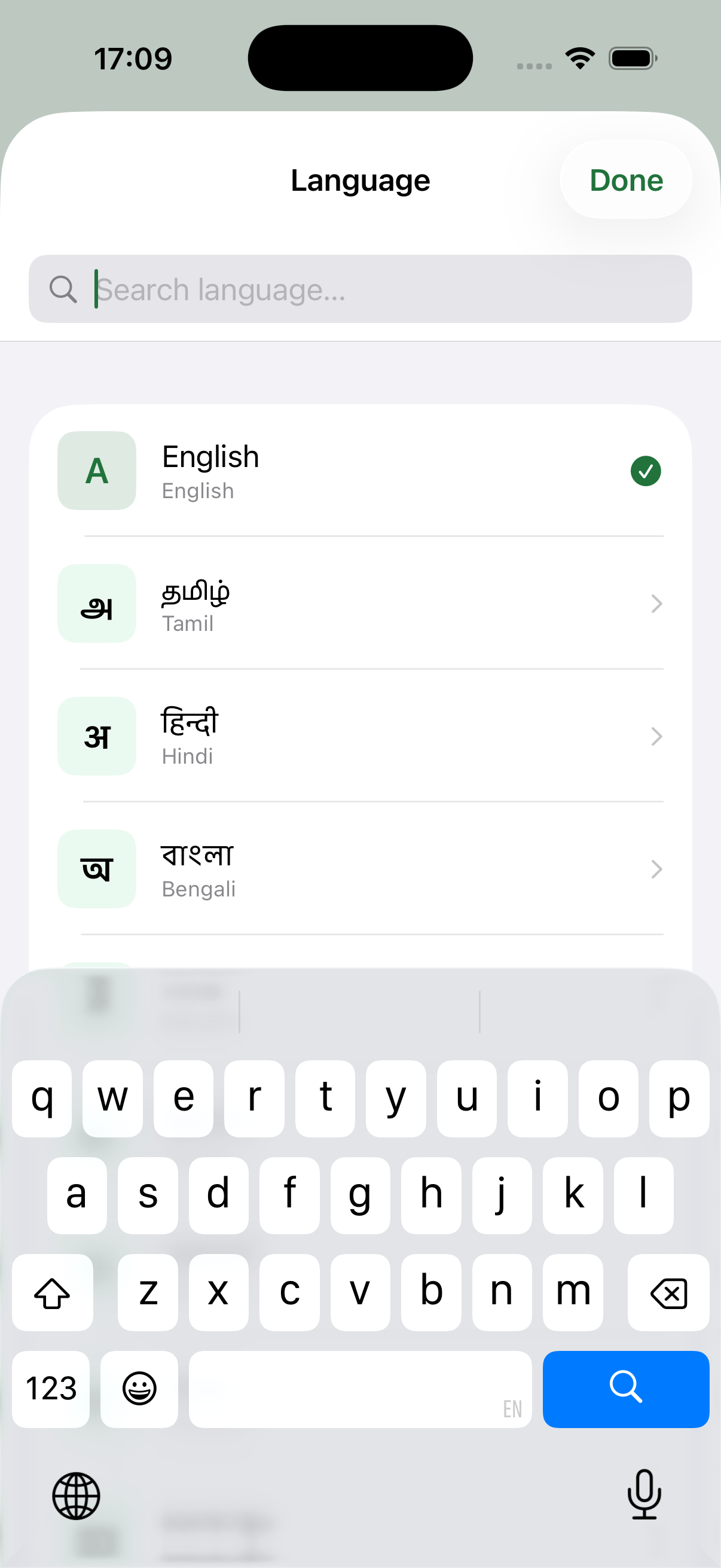
Display Language
Choose from 80 supported languages. All interface labels, button texts, and cuisine names switch instantly to your chosen language.
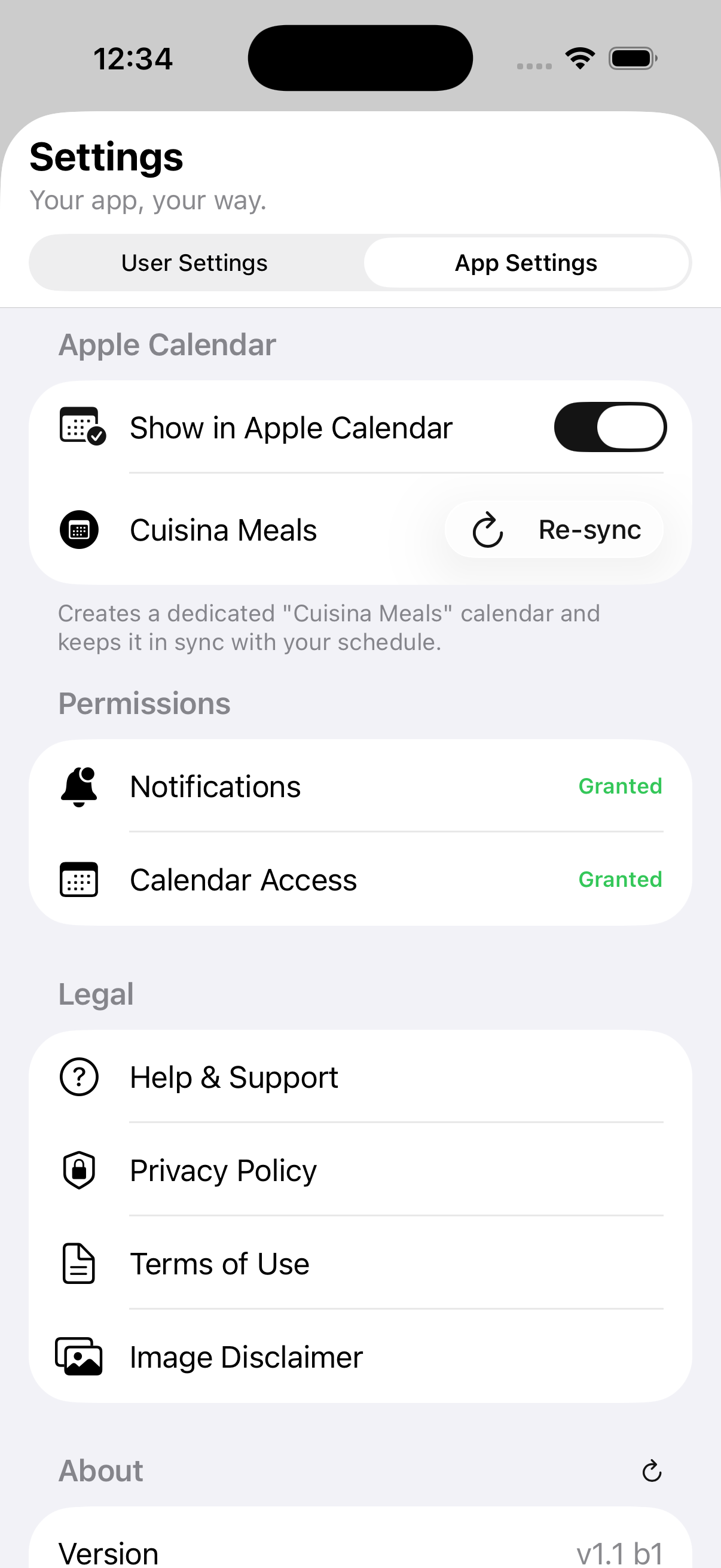
Device Calendar Sync
Seamlessly sync your scheduled meals with your phone's native calendar (Apple Calendar on iOS or Google Calendar / default calendar on Android). A dedicated "Cuisina Meals" calendar is created and kept up to date automatically.
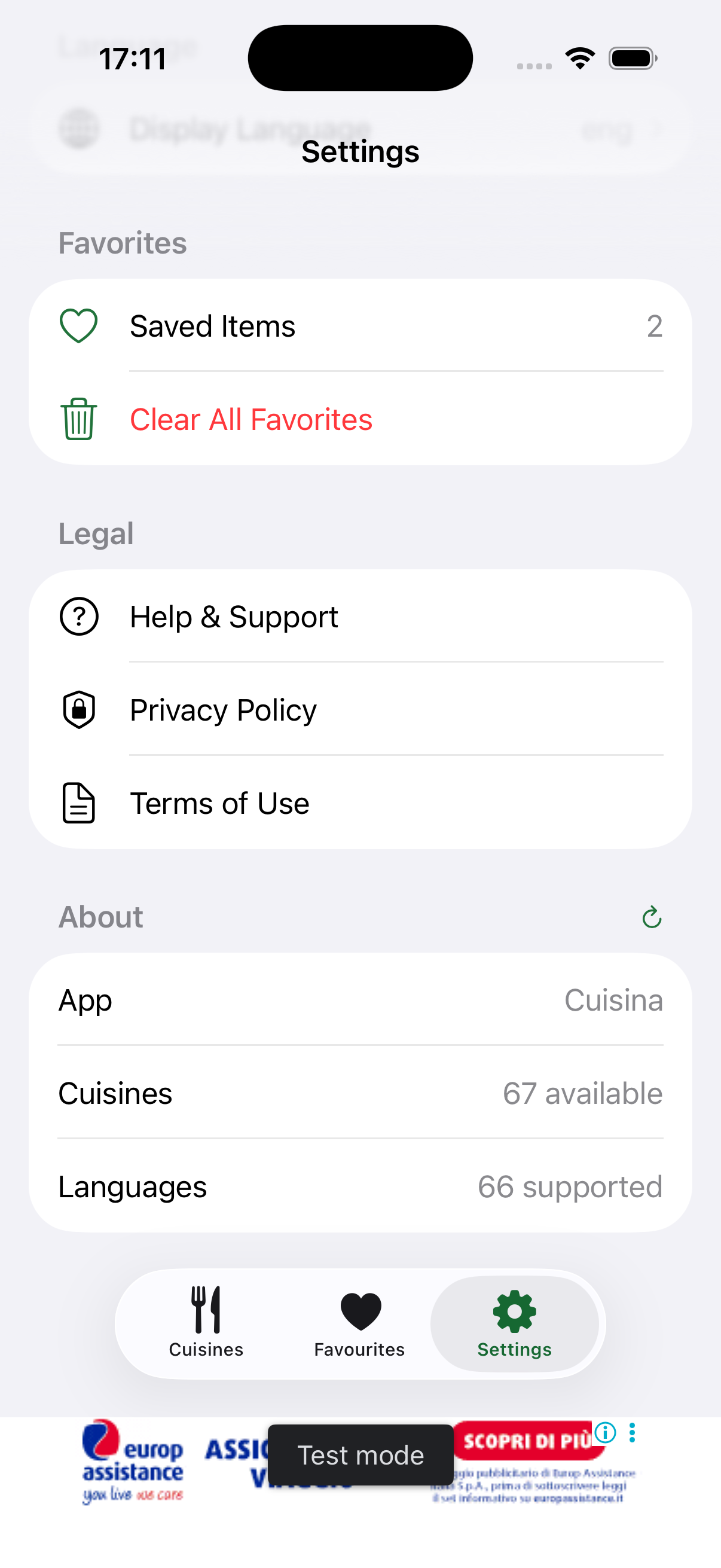
Favourites & Storage
View the number of bookmarked dishes. You can reset or clear saved favourites at any time.
About, Legal & Transparency
Check the app version, total available cuisines (476), supported languages (80), and access our Terms of Use, Privacy Policy, and Image Attribution Disclaimer.
More Screens & Views